
Table of contents
1. Activation and Login
The IKARUS Partner Portal is only available to registered IKARUS partners. To use the portal, your company must be authorised by us in advance. Please contact us at +43 1 58995-500 or reseller@ikarus.at.
Once you have signed the User Agreement, an email address of your choice will be activated as an Admin user for your company. You will receive an email at this address with a link to log in to the IKARUS Partner Portal. Follow the link and choose a password. Once you have successfully logged in, you will be able to create additional users for your company.
You can reach the IKARUS Partner Portal at https://partner.ikarus.at or via a link on our website https://www.IKARUSsecurity.com.
2. Homepage
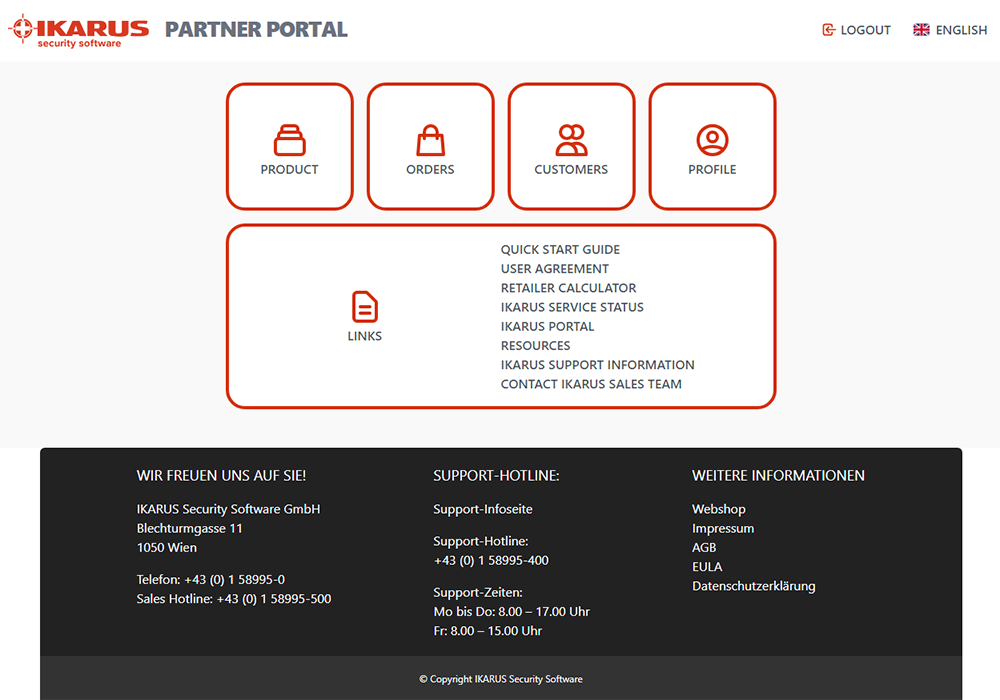
The portal home page, which appears after you log in, takes you to your available products, your orders, your end customers, and your profile.
Clicking on the IKARUS logo at the top left will always take you back to your home page.
You can find useful information and documents in the links section:
- Quick Start Guide
Getting to know the IKARUS Partner Portal - User Agreement
Terms of use for the IKARUS Partner Portal - Retailer calculator
Excel file for price calculation - IKARUS Service Status
Current information on the availability of our products - IKARUS Portal
Management of the IKARUS cloud.security services - Resources
Supporting data and links (logos, datasheets…) - IKARUS Support Information
Helpful information and documents (manuals, FAQs…) - Contact the Support Team
E-Mail to support@ikarus.at
The IKARUS Partner Portal is available in English and German. Select your preferred language using the flag icon at the top right.
3. Products
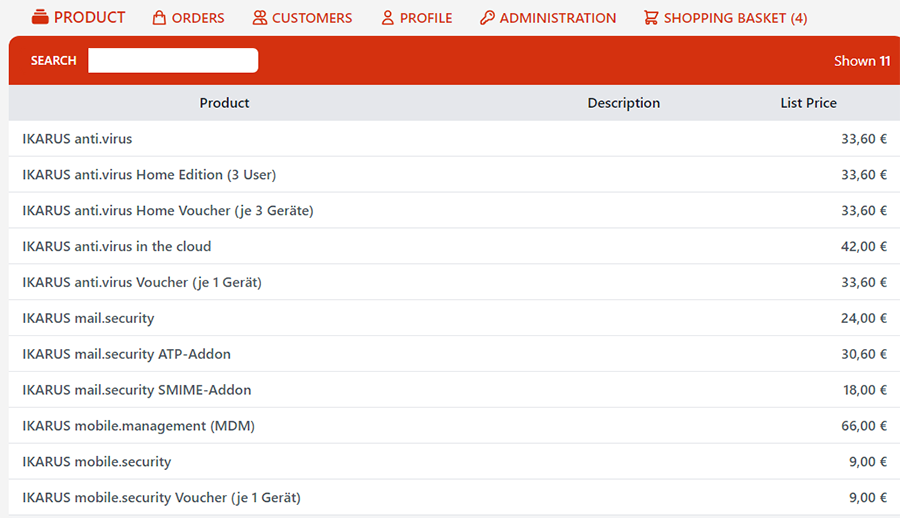
Clicking on the Products icon on the home page or in the table header will open a list of all products you can order through the IKARUS Partner Portal. You can change the sort order of the list by clicking on the table headings (product, description, list price).
The search box allows you to search either the entire list or by name, description (if available), or price. Click on the ‘Search’ button to open a drop-down menu with the appropriate options.
To order products that are not listed in the IKARUS Partner Portal, please contact us at +43 1 58995-500 or reseller@ikarus.at.
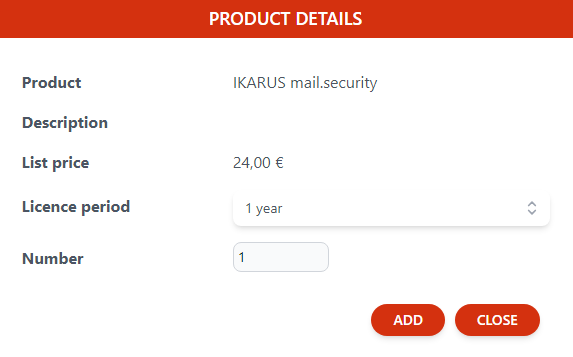
Click on a product name in the product overview to open the product details page. Here you can change the number and duration of licences and add the product to your basket.
Note: There can only be one licence period and one end user for each order placed. If you have already added a product to your shopping basket, you will only be able to add products with the same licence period – the licence period will no longer be selectable in the product details but can be edited in the shopping basket. Please order products with different licence periods and end users separately!
4. Orders
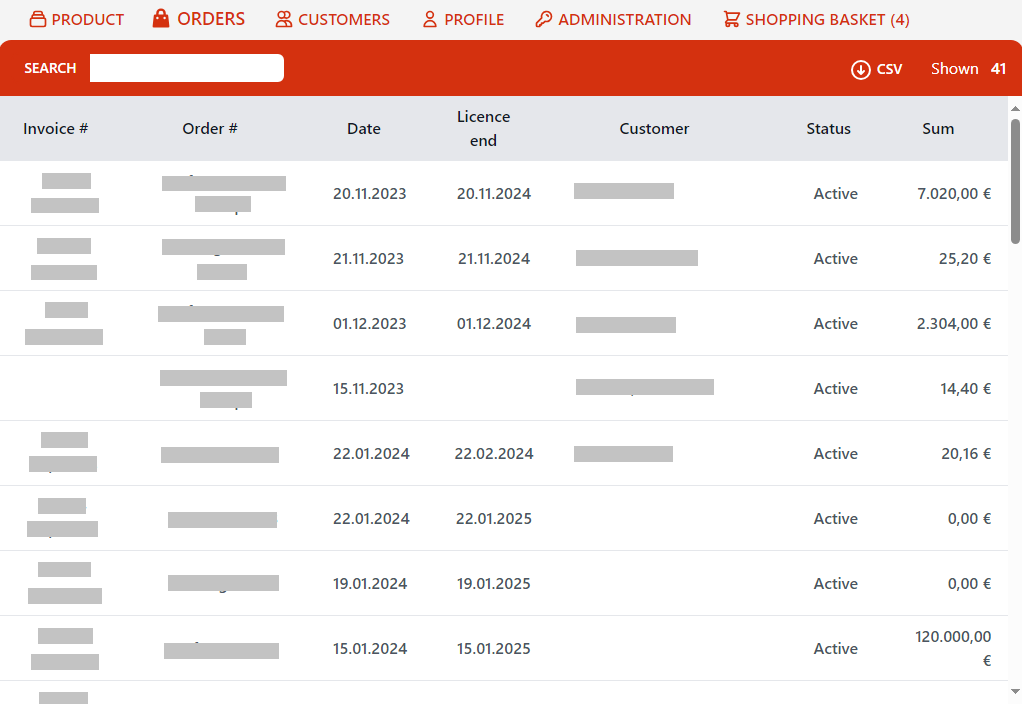
Clicking on the Orders icon on the home page or in the table header will open a list of all orders you have placed via the IKARUS Partner Portal or via the IKARUS Sales Team. You can change the sort order of the list by clicking on the table headers (Invoice Number, Order Number, Date, Licence End, End Customer, Status, Sum).
You can use the search field to search for invoice, order, order number, end customer or status. Click on “Search” to open a drop-down menu with the corresponding selection. Please select one of the displayed areas to perform a search.
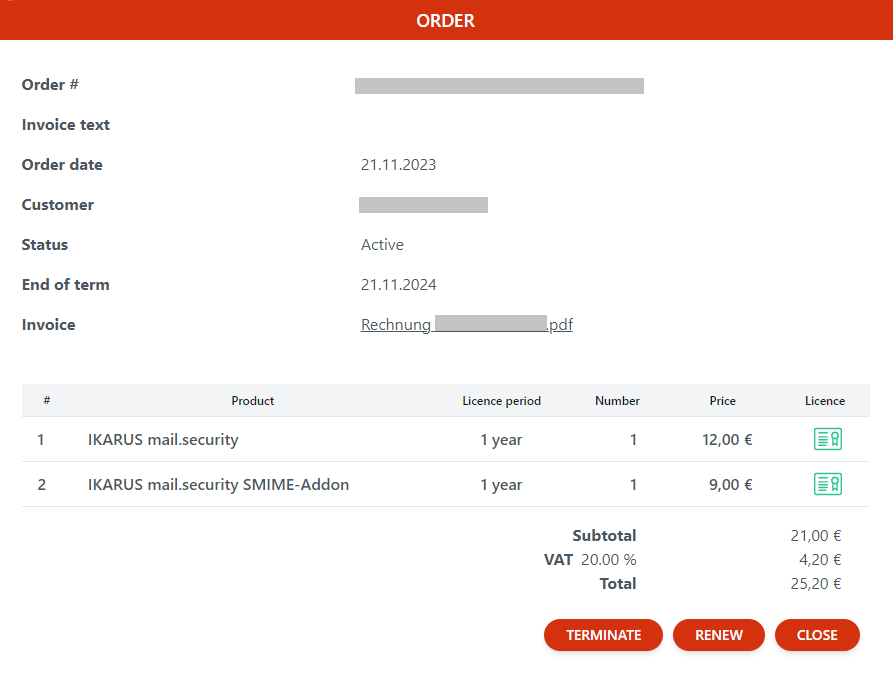
Click on an entry to open the order details. Here you can download the invoice for the order as a PDF by clicking on the invoice name. You can also download the licence keys by clicking on the licence key icon in the product summary table.
Active orders can be edited here. The Cancel button allows you to cancel the current order so that it is not automatically renewed at the end of its term. A window will open asking you to enter a reason for the cancellation.
By clicking on the Renew button, the products in this order will be added to your basket in the same configuration. In the basket, you can change the number of users or the duration by clicking on the relevant products. To order the renewal, complete the order by clicking the Renew button and then click Confirm order. The new order will then appear as active in the order history. IKARUS will carry out the renewal before the new period begins. To edit an already ordered extension before the start of the term, please contact the IKARUS Sales Team. Invoicing will take place at the start of the new period and the order will now appear in the order history with the invoice number.
Note: If there are multiple renewals, only the last active order can be renewed. By searching for the order number, you can view all associated orders and determine the last active order based on the licence end date.
5. Customers
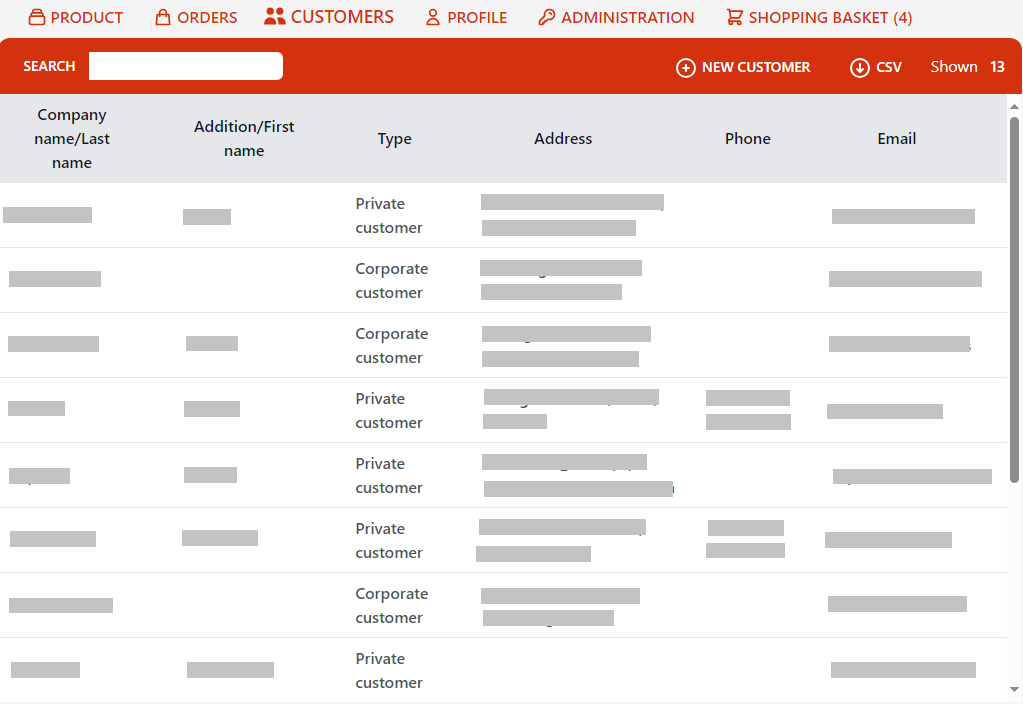
Clicking on the Customer icon on the home page or in the table header will open a list of all customers you have created in the IKARUS Partner Portal. You can change the sort order of the list by clicking on the table headings (name, address, phone number, email address and customer type).
The search box allows you to search either the entire list or by name, description or price. Click on the ‘Search’ button to open a drop down menu with the appropriate options.
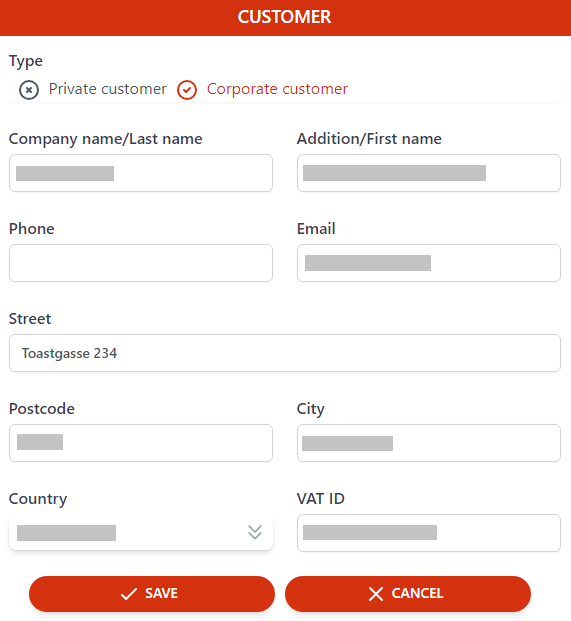
By clicking on an entry, you can open, edit and save the customer details.
6. Profile
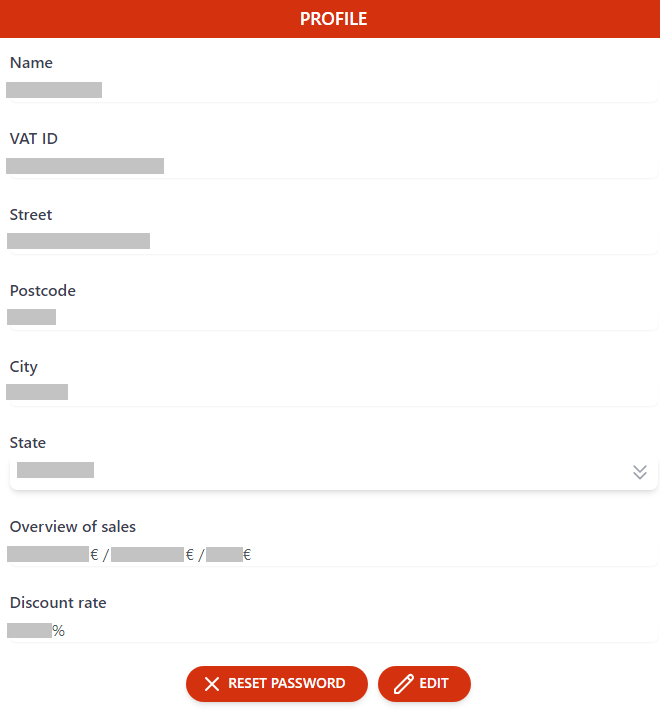
Clicking on the profile icon on the home page or in the table header will open your profile page with information about your company, an overview of your sales, and your discount rate.
You can edit your master data by clicking on the Edit button.
The sales overview automatically shows your total annual sales with IKARUS in the current year, the previous year, and the year before that – net and in Euros.
The discount rate indicates your discount on the list price.
Use the Reset Password button to reset the password for the user currently logged in. You will receive a link to a login page where you can set a new password.
7. Administration
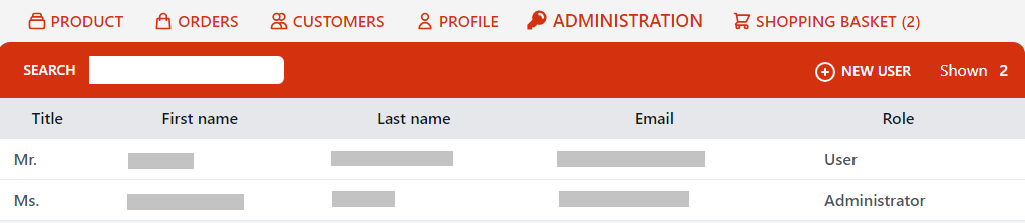
Admin users will see the Administration section in the table headings. This takes you to a view of all portal users created for your company in the IKARUS Partner Portal. Users are only created by you, not by IKARUS.
The search box allows you to search either the entire list or by title, first name, last name, email, or role. Click on the ‘Search’ button to open a drop-down menu with the appropriate selection.
You can add portal users by clicking the New User button in the red header. Users have full editing rights for Products, Orders, Customers and Profile. Administrators have additional rights in the Administration section to create, edit or delete portal users.
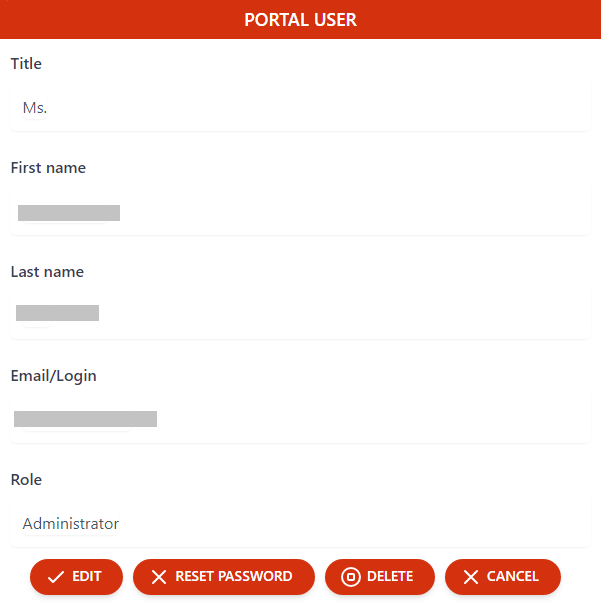
Click an entry to open the user details. You can edit the record, reset the user’s password (a link to a password reset page will be sent to the email address provided), or delete the user.
Note: Your own user does not appear in the portal user overview and can only be edited by another Admin user. It is therefore not possible to accidentally delete or lock yourself.
8. Shopping Basket
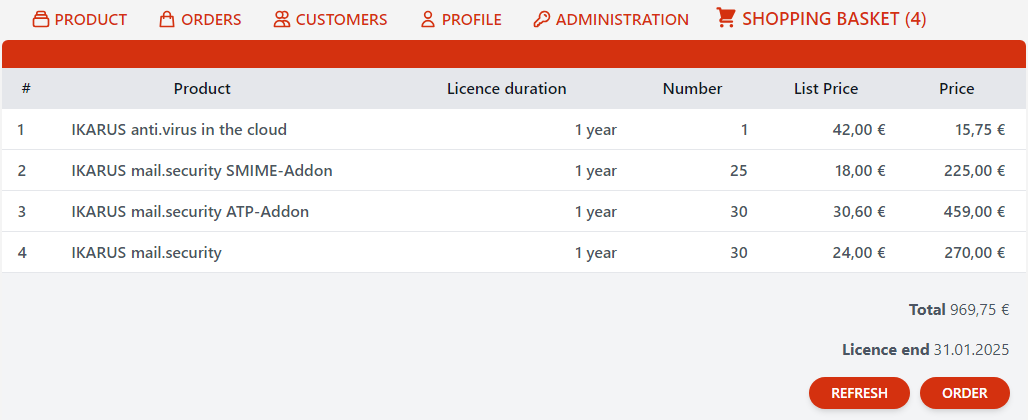
In the shopping basket you can see all the products and their configurations that you have added to your shopping basket.
Note: Please note that there can only be one licence term and one customer per purchase order! Please split purchases with different licence terms or multiple customers into multiple orders.
By clicking on each product in the cart, you will be able to change the configuration of that product. Changing the runtime always affects the entire cart. The changes will be visible after clicking on the Refresh button.
Click on the Order button to go to the order overview.
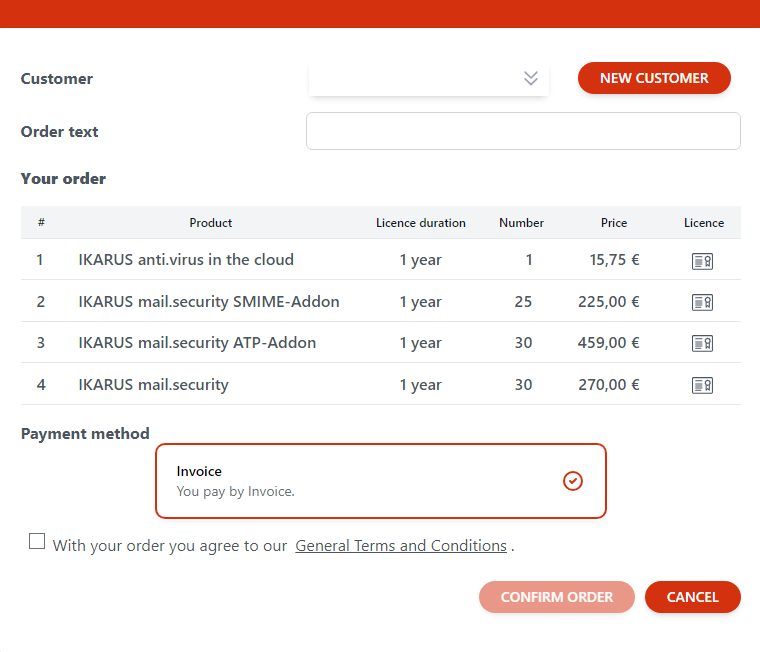
In the Customer field, select the end customer for your order or create a new one using the New Customer button. This field is mandatory. The Order text field is optional and free to fill. The order text will also be printed on the invoice.
The table shows your product details including licence duration, number of licences and list price. Licences are automatically activated when you place your order or, in the case of renewals, when IKARUS processes your order. They can be retrieved at any time by clicking on the licence icon. You can find them after your order under Orders.
Under Payment Method, you will see the payment method stored at IKARUS. Your discounts are automatically calculated during the order process. You can view your discount rate in your profile.
You must accept the IKARUS General Terms and Conditions to confirm your order.
If you have any questions or feedback, please do not hesitate to contact us! You can reach us during our business hours at +43 1 58995-500 or reseller@ikarus.at.